[optional ] Click Here To Activate Push For GV using your itim app
Activate Receiving Google Voice Texts on Your iTim App (SETUP USING A COMPUTER)
(IMPORTANT: IF YOU DON'T ALREADY HAVE A GOOGLE VOICE ACCOUNT AND NUMBER, YOU CAN GET ONE FOR FREE BUT IT MUST BE DONE FROM A COMPUTER, do not use your ipod or ipad or iphone).
 +
+
STEP 1. "Cool, I have my Google Number" ....what now?
Now add your itim address to your GV account. If you have already done this, skip to step 2
[a] -> [ Click Here TO ADD @itim to GV] <- to add your @iTim address (you might be required to log in).
[b] Put in your @itim.me address in the text box (make sure it is all lowercase) and [e] hit save. After doing so, you will receive the verification text from Google in the iTim Text Application.
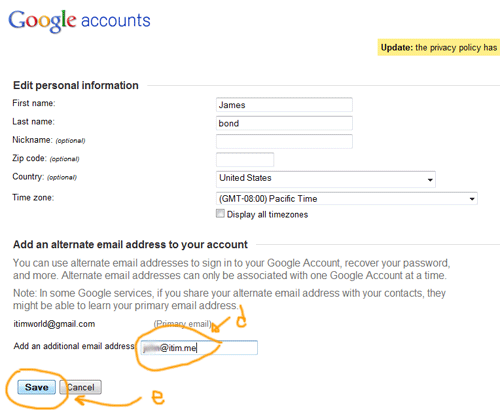
After you click save, you wil receive a text to verify your itim address in your iTim App.
STEP 2. "Google Confirmation Received"
To verify your @itim.me address with your Google Account, Simply click the message bubble, select copy from the popup menu and copy the link.
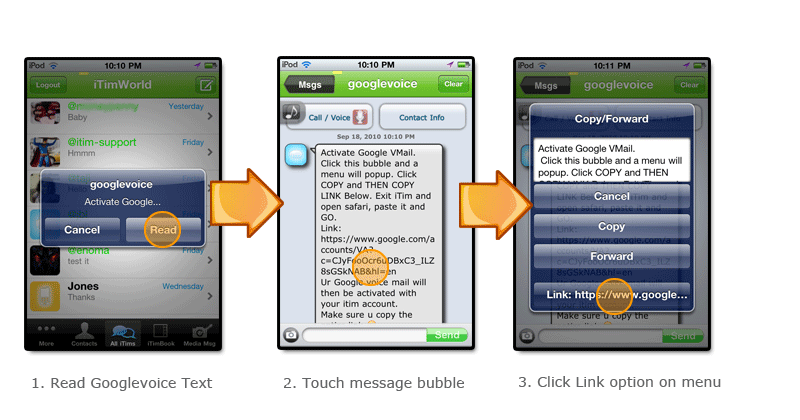
clicking link will take your to the google voice verify page, enter your password to confirm.
FINAL STEP 3. Activate Push Alerts For GV Receiving.
You have to forward all your Google Voice SMS messages to your @itim.me address. To do so, login to your Google Voice account, go to Settings > Voice Settings > Voicemail & Text.
Change the drop down menu next to Voicemail Notifications to your @itim.me address [3a] and save [3b].
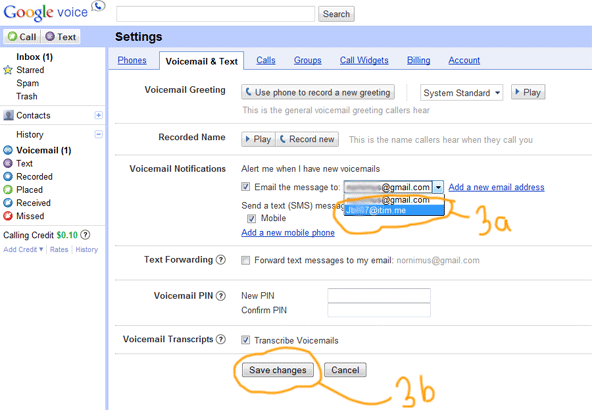
IMPORTANT: YOU MUST HAVE A CHECKMARK FOR Voicemail Notifications (next to "email the message to") and YOU HAVE A CHECKMARK FOR Text Forwarding.
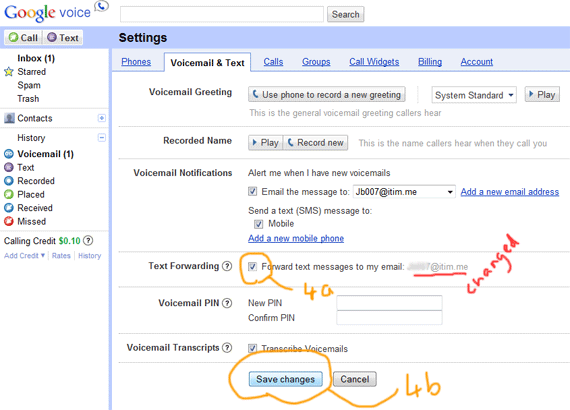
STEP 4. Check Forward text messages to your @itim.me address
You will notice that the address next to text forwarding has now changed to you @itim.me address.
Put a checkmark next to it [4a] and save [4b].
STEP 5. Disable Receiving Duplicate Texts on your regular text app (HIGHLY RECOMMENDED)
If you only want to receive your sms in iTim but do not want to receive SMS that also get sent to your regular cellphone, here's how to disable Receiving SMS on your cellphone.
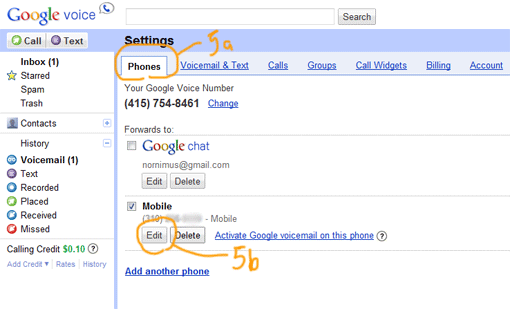
-> In GoogleVoice, Go into settings, then the Phones tab [5a] , click 'edit' [5b] on your cell #
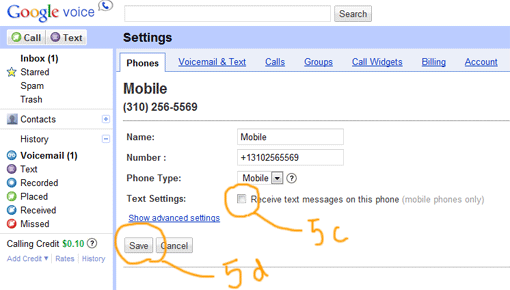
-> then UNCHECK [5c] the box that says "Receive SMS on this phone (mobile phones only)". Don't Forget to Save [5d] 
STEP 6. And You are done...Almost
Give your friends your google voice number and have them send an text to your google voice number. You will get it in your itim app. Now, whenever you text your friend, your google voice number will show up when you use itim.
Voicemail: Now when you receive a voicemail, you will get it in your itim text app including the transcript and the audio. You can even reply to the person who left the message with a text or an MMS message.
STEP 7. Receiving MMS
a. If your friends have SPRINT, they CAN send MMS to your Google Voice Number and you will get it.
b. All your other friends simply have to add "@itim.me" to the end of your Google Voice Number and send the MMS (Ex. they text the photo to 3105551212@itim.me). MUST BE SENT AS TEXT/MMS (NOT EMAIL).
c. they can reply to an itim mms msg you sent them already with a photo or video message and you will receive it directly in your iTim Text App.
d. Or Your friends can text the word "@photo" to your Google Voice number and they will get an auto-text asking them to reply with a photo or video. When they reply with the photo/video, you will get it.
Enjoy !!!!
Oh, VERY IMPORTANT
You should follow us on twitter to learn when we make changes to your phone number or your app.
Go to twitter.com/itimworld
Have facebook? Send us a friend request at facebook.com/itimworld
If you have any issues setting up Google Voice with your iTim Text app, we have 24 / 7 support within the app by texting itim-support. Optionally you can email at itimsupport [at] itimworld dot com.
Enjoy Texting and MMS-ing !